Delivering galleries
Everything below ships on every gallery: verified email access, expiring links, one-click revocation, and unlimited viewing with no metering of your client's attention. The gallery's look lives in Gallery design & styles; this page is the delivery machinery around it.
Verified access, expiring links
You send a gallery from a project's Client gallery tab: pick the recipient and the scope (everything approved, or specific folders), see the exact image set about to ship, and send. Your defaults from Settings → Delivery prefill the expiry and the download permission, with a per-send override. The client opens the link and verifies their email with a one-time six-digit code; their browser stays verified for 30 days while the gallery's status is re-checked on every request — revoking cuts off an open session immediately.
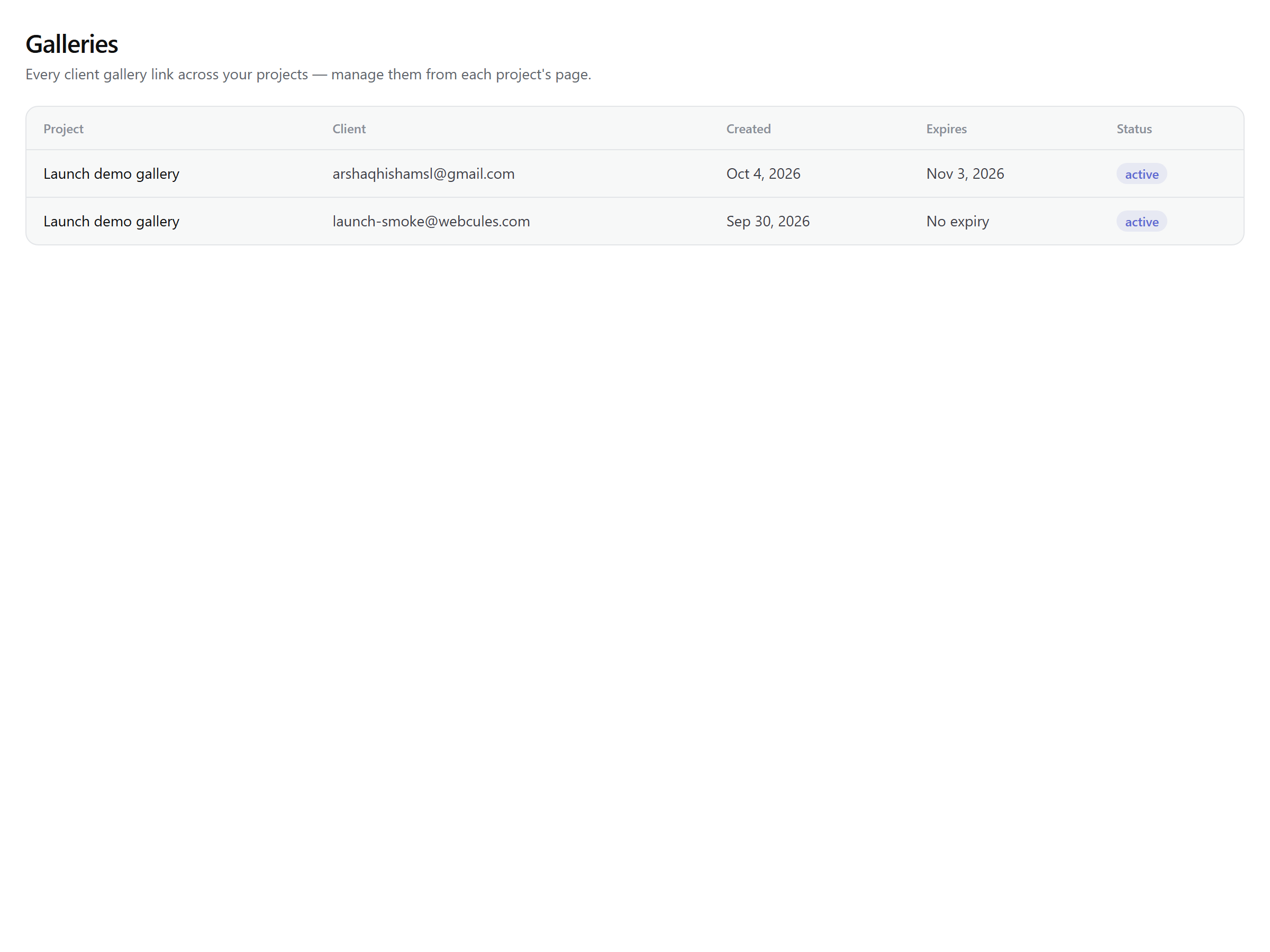
Expiry is yours to set — 7, 30, 60, 90, or 365 days, or no expiry — and you can change it, revoke, or regenerate the link at any moment (a regenerated link kills the old one and inherits the photos and settings). The Galleries page lists every link with its state:
| State | What it means |
|---|---|
| Active | Live and serving. |
| Expiring soon | Less than seven days left — extend if the client needs longer. |
| Expired | Past its expiry; extend to bring it back. |
| Revoked | Dead immediately — even mid-session. |
| Regenerated | Superseded by a fresh link; the old URL is dead. |
Note: Active galleries are capped by plan — five on Free, fifteen on Lite, unlimited on Studio and above — and closing one frees its slot.
Slideshows with your music
One tap plays a full-screen slideshow — crossfades, optional motion, your pace. Add a track you own the rights to (MP3/AAC/M4A, ≤ 15 MB) and it streams with the show; a vertical 9:16 mode is built for watching on phones and saving to Stories. We don't license music for you — bring your own and the rights stay yours (you confirm ownership on upload; it's recorded).
Downloads under your control
Download all is on every plan. Your client presses Download and the files start saving straight away — whole gallery, one folder, or their favorites. There is no waiting for an email: the ZIP is assembled on the fly while it downloads, so a 20 GB wedding behaves like a 20 MB one. Galleries over 2 GB arrive as a few ZIP parts (“Part 1 of 6”) — every part opens on any computer or phone, and a dropped connection only costs one part. Photos and films are both included; a single file over 4 GB is downloaded on its own from the full-screen view.
Per gallery you can also allow downloads (or not), set a 4–8 digit PIN Lite, cap how many single photos a client can pull, offer a web-size option Lite, and require your approval before bulk downloads Studio. Downloads follow the gallery's protections: proofing galleries deliver watermarked previews only, and original JPEGs leave without location data. Revoking or expiring a gallery stops downloads immediately — even ones already in progress — and renewing the link restores them.
Arrange the order your client sees
Photo order is on every plan. When you press Share in the Files tab, choose the “Photo order” or press Arrange photos to open a full-screen workspace with large thumbnails: drag photos into place and the others make room live. Exactly the order you see is the order your client gets. Press Arrange on any sent gallery to change it later: sort and drag as much as you like (nothing is saved until you press Save & close), and your client sees the new order the next time they open the link — nothing needs re-sending.
- Sort by filename (A to Z or Z to A, with numbers in human order so IMG_2 comes before IMG_10), upload date, date taken (read from each photo's camera data; photos without one fall back to upload time), color (a rainbow from reds through to purples, then black & white photos from dark to light), or a random shuffle. In a gallery with folders, a sort applies inside each folder.
- Drag and drop to fine-tune: drag a photo, or select several (click, shift-click for a range) and drag them together. Use the size slider to see photos bigger, and double-click any photo to view it full size. On a phone or with the keyboard use To start, Earlier, Later, To end or Move to….
- Every gallery keeps its own order, so the same photos can be arranged differently for different clients. Renewing a link keeps the order. The client's grid, full-screen view and slideshow all follow it.
A welcome collage in the email and the gallery
On every plan, you can head a gallery with a picture of your own. When you send a gallery, the Welcome collage box lets you upload an image, or make one in Snap: pick up to six photos, choose a layout (grid, a big photo with a stack or a row, or a strip), a shape (landscape, square or portrait), spacing and background — plus an optional caption like “Mia & Leo · June 2026”. It appears at the top of the “your photos are ready” email, linking to the gallery. Tick Show as the first image on the client gallery to also put it at the top of the gallery itself (off by default).
- Change or remove it any time with Collage on a sent gallery. The gallery updates straight away; press Re-send to put the new picture in a fresh email. Renewing a link keeps it.
- Revoking or expiring the gallery stops the picture loading in old emails (some mail apps cache images for a short while).
- The picture is resized and stripped of location data, and is visible to anyone who gets the email — so use photos you're happy to show there. Proofing galleries can't have one, because it would put clean, unwatermarked photos in a public email. Some mail apps (Outlook, for one) hide images until the reader allows them; the “View gallery” button always works.
Social sharing that markets you
Clients share a photo with the native share sheet; the recipient gets a beautiful card with the photo (watermarked if you watermark) and a “book your session” link to your booking page. Every shared link is a child of the gallery — revoke the gallery and every card dies with it.
The client app (/my)
Your clients verify once by email and get a home for every gallery you've ever sent them — installable to their home screen with your name and icon, working offline for the photos they've opened, with favorites that sync when they're back. On Studio with the custom domain add-on, it even runs on your own domain. It's a web app, not an App Store app — no store review, instant updates, ~95% of the value at ~zero cost.
Insights, not surveillance
You see who viewed, what they favorited, which photos they returned to, and how far your shared photos traveled — counted per client email, visible only to you. No mouse-tracking, no time-on-photo theater, no third-party analytics scripts anywhere. Nudge a quiet client with one click when a deadline matters.
Honest limits
What Snap does not do
- No native App Store app (PWA instead — by design; revisit with demand).
- No music catalog — BYO tracks with your rights, recorded at upload.
- Videos deliver bit-exact, no transcoding — export H.264 MP4 for universal playback; HEVC may not play everywhere. 4 GB per file (see Films & video delivery).
- Download-all ZIPs are plain, uncompressed archives (photos are already compressed), so their size matches your gallery. Very large galleries split into parts of about 2 GB each — unzip them into the same folder.
- Offline caches on a client's device can't be wiped retroactively by anyone (true of every platform) — expiry, watermarks, and revocation are the real protection layers, and our app purges its caches on the next launch after a gallery dies.